
The recent post from Hackaday on Borland Turbo C/C++ [1] managed to trigger my nostalgia, when I needed to pass some national programming testing in C as an undergrad in China over 20 years ago, and it was Borland Turbo C 1.0. Anyway, this post is about running Borland Turbo C++ 3.0 on my MacOS. Nothing complicated albeit some caveats.
1. Get DOSBox
This is a no-brainer. Go get it at [2].
2. Get Borland Turbo C++ 3.0
I decided to go with Turbo C++ 3.0 because of the syntax highlight, especially the green color:) Fetch your beloved TC at [3]. I used the 3.5” version.
3. Install and Run TC
After unzip the TC3, there should be five disk image files (Disk01-05.img). These are floppy disk image files. One caveat here is that we need to extract the original installation files from these five images. Belive or not, MacOS gave me some hard time on this, since I’ve never figured out how its mount works (compared to the Linux one). Nevertheless, “Disk Utility” came to save, which can easily mount these floppy disk images under /Volumes.

Create a local directory, e.g., “/Users/daveti/install”, and extract all the files from these five images into the install directory.
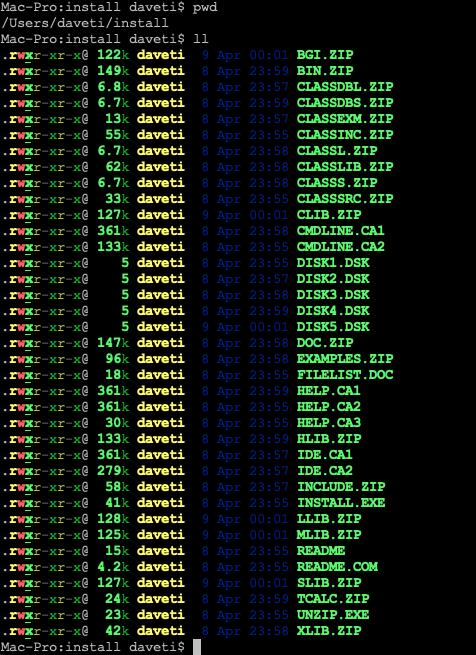
Create a target directory, e.g., “/Users/daveti/dos/tc”, where TC will be installed. Start Dosbox:
mount c /Users/daveti/dos
mount a /Users/daveti/install
Then change to A: and run “INSTALL.EXE” to install TC under “C:\TC” by default.

4. Run TC
Since I have configured my DOSBox yet, I need to mount C: before I could run TC. Once mounted, change to C:\TC\BIN, and run “TC.EXE”.

References:
[1] https://hackaday.com/2023/04/08/revisiting-borland-turbo-c-and-c/
[2] https://www.dosbox.com/
[3] https://winworldpc.com/product/turbo-c/3x




 davejingtian.org
it says Too many subdirectories: Press ESC. after choosing C:TC directory
The part about using Disk Utility to mount the floppy images on macOS is a great tip. That process can indeed be unintuitive compared to the terminal. It’s neat to see these old tools brought to life on modern hardware.